
Overview
Once your measurement environment is activated, the next step is to define the direction against which growth signals are interpreted.
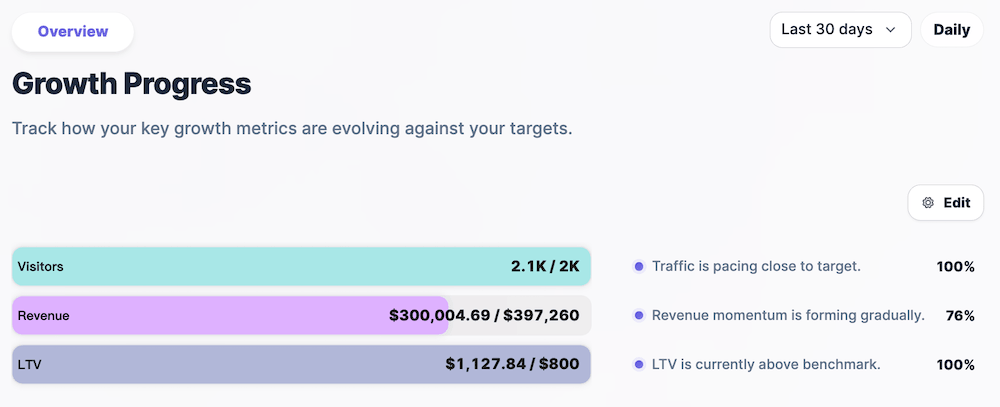
In OneLence, this mainly involves setting KPI targets and selecting the appropriate observation scope when reviewing performance.
These adjustments do not require frequent changes.
Instead, they serve as reference conditions that allow the system to assess whether growth momentum is progressing as expected.
Editing KPI Targets
Growth targets can be configured directly from the Overview page within the Growth Progress card.
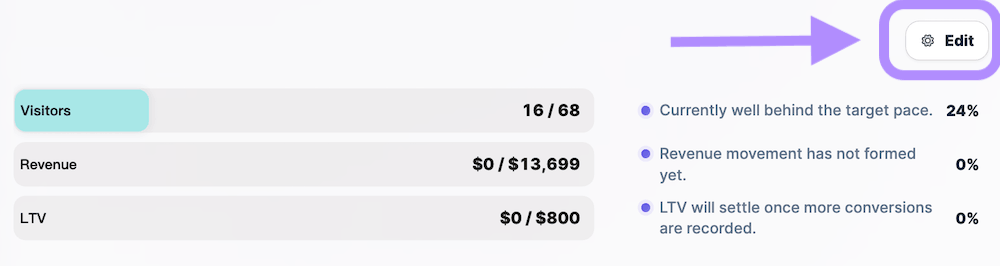
To update your targets:
- Navigate to the Overview page.
- Locate the Growth Progress section.
- Click Edit.
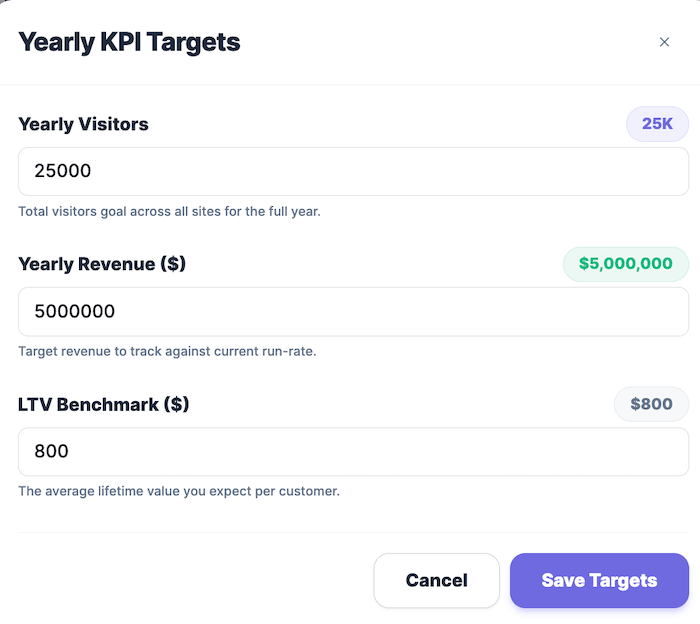
- Adjust the target values for key indicators:
- Visitors
- Revenue
- LTV
Once saved, these targets become the evaluation reference used by OneLence when interpreting signal strength, pacing, and progress across reporting periods.
Note: Targets are not intended to reflect daily fluctuations. They should represent realistic directional expectations for the current growth phase.
Editing Funnel Mapping
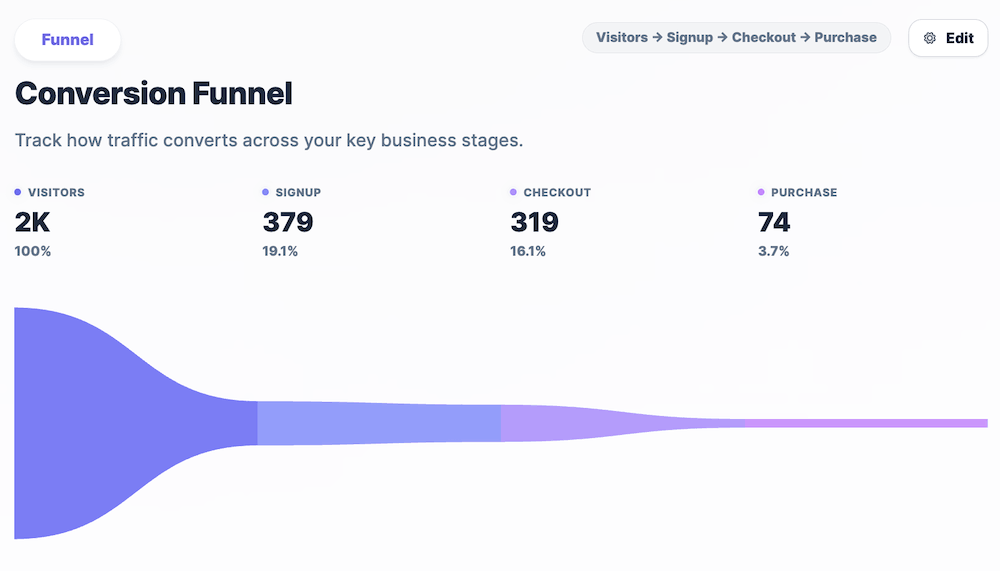
Funnel Mapping lets you decide which tracked events represent each step of your growth funnel. This helps OneLence interpret visitor behaviour more accurately.
Set Up Your Funnel
- Click on Edit.
- Visitors is automatic and cannot be changed.
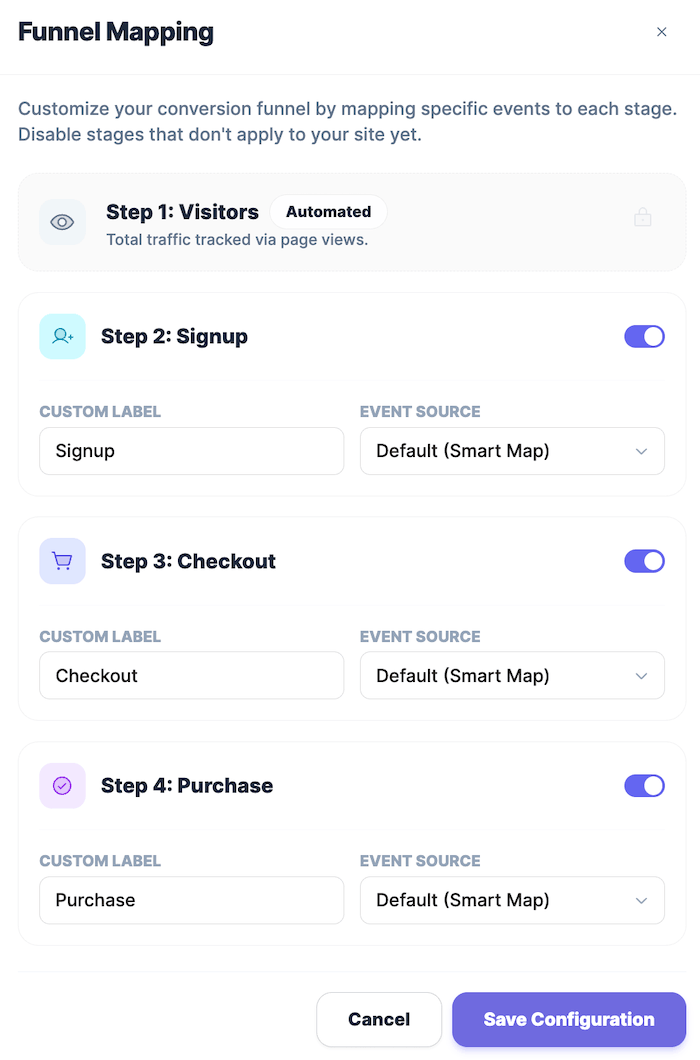
- Choose to turn on or off Signup, Checkout, and Purchase steps.
- For each enabled step:
- Adjust the Custom Label if you want to use your own naming.
- Select the Event Source that should represent this step. Default (Smart Map) automatically assigns the most relevant tracked event.
- Click Save Configuration.
When To Change Funnel Mapping
- Your website uses a different conversion flow
- You introduce new key actions (for example demo booking or onboarding completion)
- You want reporting to match your internal KPI naming
📌 If unsure, keep the default Smart Map setting. OneLence will continue learning from real behaviour automatically.
Adjusting The Evaluation Timeframe
Performance interpretation in OneLence is always linked to the selected time window.
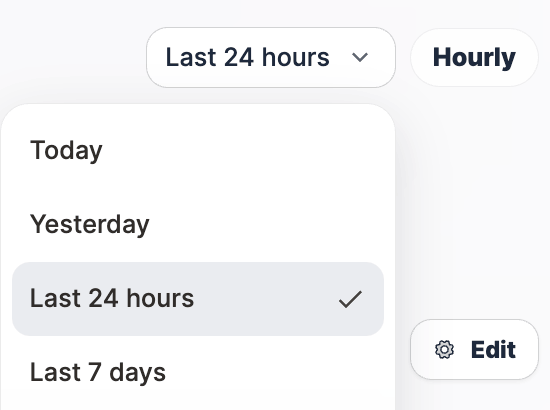
From the same Growth Progress area, you can change the timeframe (for example: daily view, last 7 days, monthly view).
This affects how signal density and trend stability are displayed.
📌 Shorter timeframes help you observe recent movement, while longer periods provide a more stable growth perspective.
Switching between them can be useful when validating campaign impact or reviewing overall trajectory.
Switching Website Context
If your workspace includes multiple tracked websites, you can change the observation scope using the site selector in the header navigation.
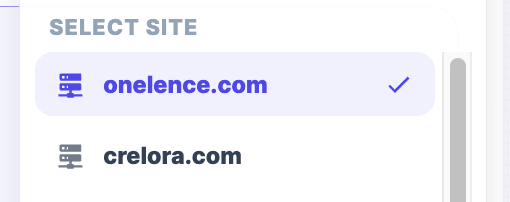 Selecting a different website immediately updates:
- KPI progress visualisation
- signal interpretation layers
- insight generation context
- decision prioritisation
📌 This allows you to review growth direction individually for each property, rather than mixing performance signals across environments.
Switching Workspace Context
If you are part of multiple workspaces, you can switch workspace scope from the profile dropdown menu in the header.
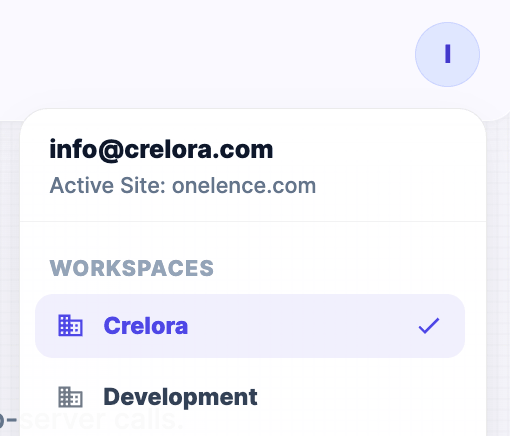
Changing workspace context updates the entire growth intelligence environment, including:
- tracked websites
- signal datasets
- insights and decision layers
- governance settings
📌 This helps teams manage separate growth ecosystems without configuration conflicts.
Why Growth Direction Calibration Matters
By defining clear KPI expectations and selecting the correct observation scope, you enable OneLence to:
- interpret signal momentum more accurately
- contextualise performance gaps or acceleration
- generate clearer prioritisation signals
- support more confident strategic decisions
After calibration, most growth interpretation processes continue automatically.