
Overview
OneLence operates as an automated signal-to-decision system, which means meaningful insights only emerge once your measurement environment is properly activated.
If you have just completed onboarding, your first website should already be connected to OneLence.
📌 If you have not completed this step yet, please refer to the documentation Quick Start Integration before continuing with this chapter.
This section focuses on expanding and managing your measurement environment after the initial setup.
📌 You will learn how to add additional websites, generate the correct API keys, and control workspace scope as your growth activities evolve.
Adding A Website To Your Workspace
To allow OneLence to observe behavioural signals from a new website, you first need to register the domain inside your workspace.
Follow these steps:
- Click the Settings icon of the site selector. You can find the site selector on every page.

- Enter the domain you want to track and select Add.
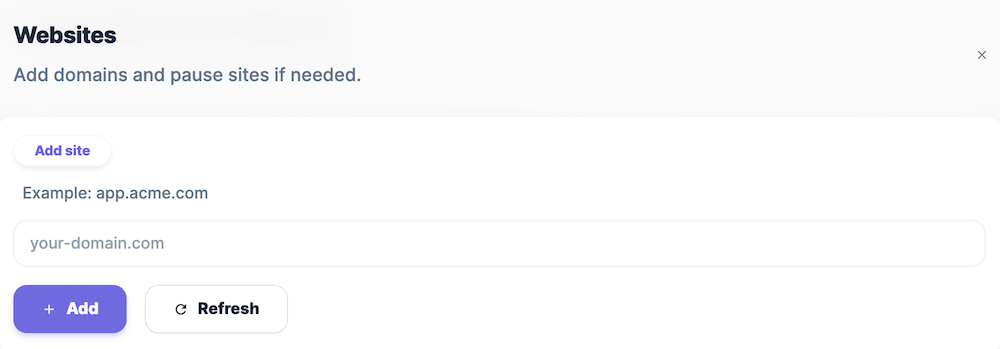
- If the website does not appear immediately, use the Refresh option in the same panel.
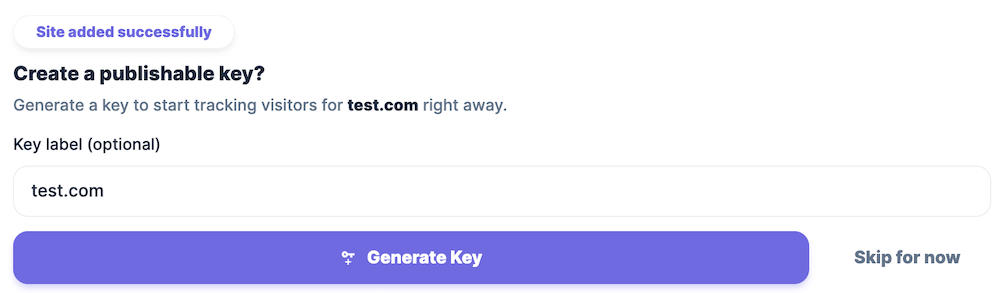
- Generate a publishable key for the page.
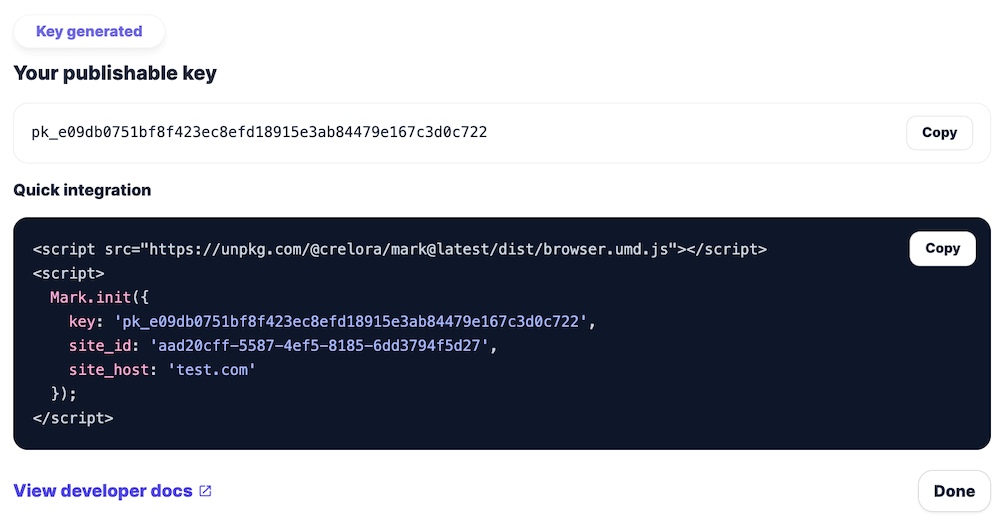
- The script snippet with your new page credentials is auto-generated. Use this code for the installation. You can refer to the SDK installation guide for more details.
- From this bottom sheet, you can also pause or enable existing websites.
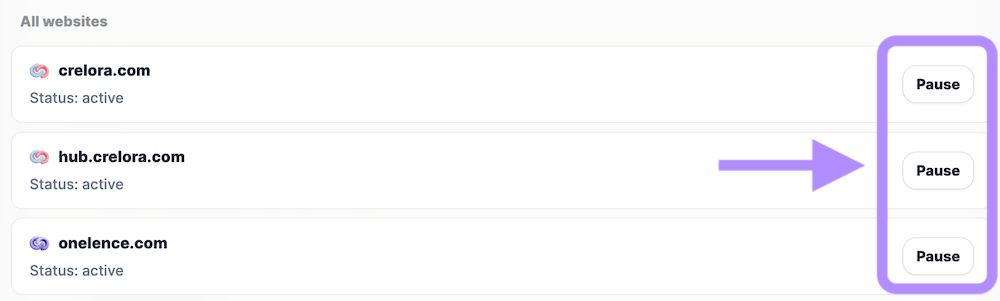
Pausing a website will temporarily stop new tracking signals from being collected.
Adding websites expands the observable signal surface of your growth environment and allows OneLence to build a broader behavioural understanding.
Creating Publishable API Keys For Tracking
Each newly added website requires its own publishable API key to connect browser-side activity with the OneLence signal system.
To create a new key:
- Navigate to Settings → API Keys.

- Ensure the key type selector is set to Publishable.

- Enter a clear name (for example, the website domain).
- Click Create.
- Copy the generated key immediately.

📌 For security reasons, the full key value will not remain visible after refreshing or leaving the page.
- After creating the key, proceed with the integration process described in the SDK setup guide to complete the connection.
Note: Each website requires a separate publishable key to ensure tracking accuracy and signal attribution clarity.
Understanding The Different Key Types
OneLence provides three categories of API keys, each supporting a different technical interaction layer.
Publishable Keys
Used for browser-side tracking via SDK installation. These keys enable real-time event collection and are required for growth signal detection.
Secret Keys
Used for secure server-to-server communication. Typically applied in backend workflows such as advanced attribution logic or system automation tasks.
Webhook Keys
Used to configure event postbacks and external system notifications. These support integrations where performance events must be transmitted to third-party platforms.
On the API Keys page, you can disable or re-enable existing keys at any time if tracking scope or security conditions change.


Managing Workspace And Site Scope
Your OneLence account is associated with a primary workspace, but you may also receive access to additional workspaces through team collaboration.
To switch workspace context:
- Click your profile avatar in the header navigation.
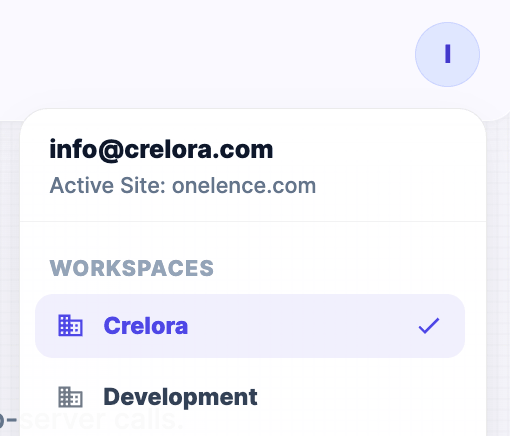
- Select the workspace you want to enter from the dropdown list.
- Within the same menu, you can also switch between tracked websites inside the active workspace.
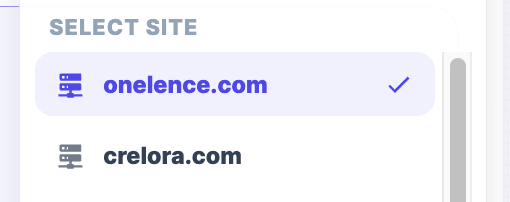
📌 This allows you to quickly adjust your signal observation scope when analysing growth across multiple properties.
Why Activation Matters
Accurate signal interpretation depends on consistent event flow and correct attribution boundaries.
By properly activating your measurement environment, you enable OneLence to:
- detect behavioural patterns earlier
- evaluate signal confidence more reliably
- generate more meaningful insights and prioritised decisions
Once activation is complete, most growth intelligence processes operate automatically.