
Overview
The Team page allows you to manage who can access your workspace and what level of responsibility they have.
This helps ensure that decision workflows remain structured while still enabling collaboration across marketing, product, or leadership teams.
Each workspace has a limited number of available seats depending on the subscription plan.
You can invite new members, adjust their permissions, or remove access when necessary.
Inviting A New Member
To add someone to your workspace:
- Navigate to Settings → Team.
- Click Invite Member.

- Enter the email address of the person you want to invite.
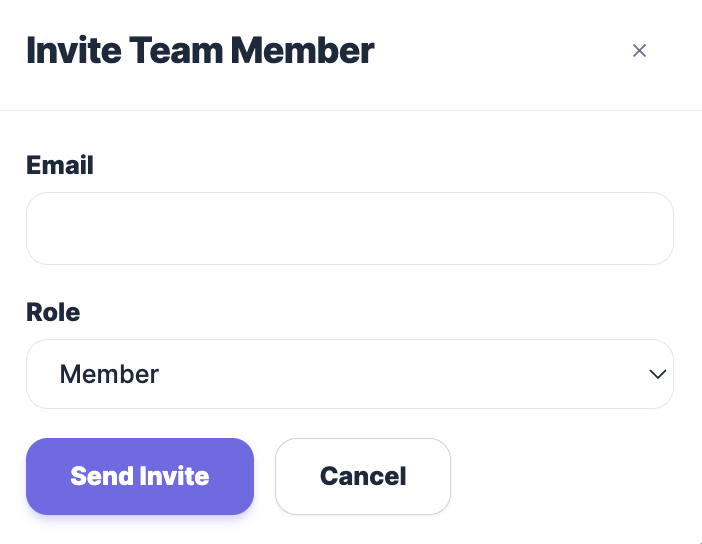
- Confirm the invitation.
The invited user will receive an access notification and can join your workspace once they accept.
Assigning Roles
After inviting a member, you can define their level of access using the role selector next to their name.
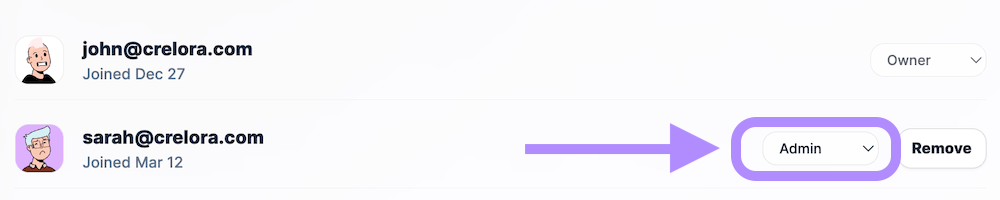 The available roles typically include:
- Owner — Full control over workspace configuration, billing, integrations, and strategic operations.
- Admin — Can manage campaigns, settings, and most operational areas, but may have limited billing authority.
- Member — Can review insights, monitor signals, and participate in decision workflows without changing core configuration.
Choose roles based on how actively the person should shape growth decisions versus simply observe performance.
Adjusting Or Removing Access
You can update team access at any time:
- Open Settings → Team.
- Locate the user in the member list.
- Click Remove if you need to revoke workspace access.
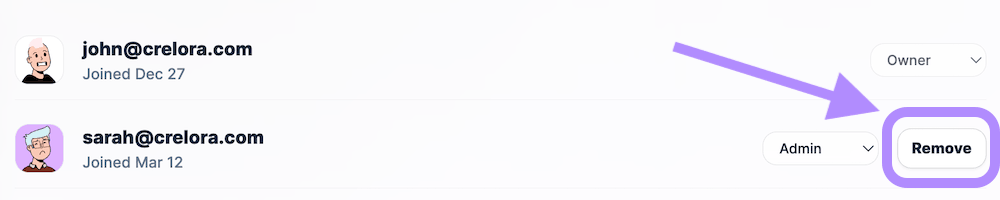
Removing access immediately prevents the user from viewing dashboards or generating strategic actions.
Using Team Roles Strategically
Clear role assignment helps maintain decision clarity inside growth workflows.
For example:
- Founders or growth leads typically act as Owners.
- Marketing managers often operate as Admins.
- Analysts, partners, or observers may remain Members.
Well-structured permissions reduce accidental configuration changes while still enabling shared interpretation of signals and insights.