
The Tracking section defines how OneLence receives and understands conversion events from your product environment.
Most users do not need to actively change these settings after onboarding.
However, understanding their purpose helps you maintain clean signal quality as your growth system evolves.
Allow Client Conversions

This option controls whether conversion events can be sent directly from the user’s browser.
📌 Default recommendation:
For most SaaS and revenue-critical environments, keep Allow client conversions disabled.
Client-side tracking can be useful in early-stage or lightweight setups, but it may introduce:
- Duplicate signals
- Incomplete or interrupted event confirmation
- Tracking based on user intent rather than verified outcomes
Enable this option only when:
- You run simple lead-generation funnels or landing pages.
- You do not yet have server-side event tracking configured.
- You are conducting rapid marketing experiments where approximate signals are acceptable.
Keep this option disabled when:
- Conversions depend on payment confirmation or backend validation.
- Subscription activation or delayed revenue recognition is involved.
- Affiliate or payout logic must remain precise.
In these cases, OneLence should rely on SDK integration and server-side signals to ensure reliable attribution.
Auto-Create Missing Conversion Types
 When enabled, OneLence will automatically generate a new conversion event type
whenever it receives an unfamiliar conversion name.
When enabled, OneLence will automatically generate a new conversion event type
whenever it receives an unfamiliar conversion name.
This setting should normally remain enabled, especially if:
- Your team is still experimenting with funnel structure
- Multiple tools or integrations send conversion events
- You want to avoid missing early growth signals
Disable this only if you operate a strictly standardised tracking architecture, where all conversion names are centrally managed.
Creating Conversion Event Types
Manual creation of conversion types helps maintain consistent signal interpretation across campaigns.
To create a new conversion type:
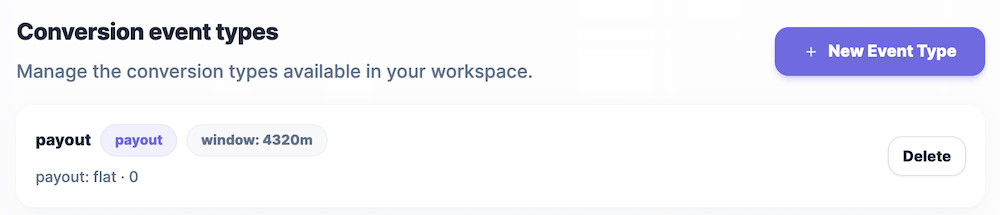
- Click New Event Type.
- Enter a clear Label (for example: “New Subscription”).
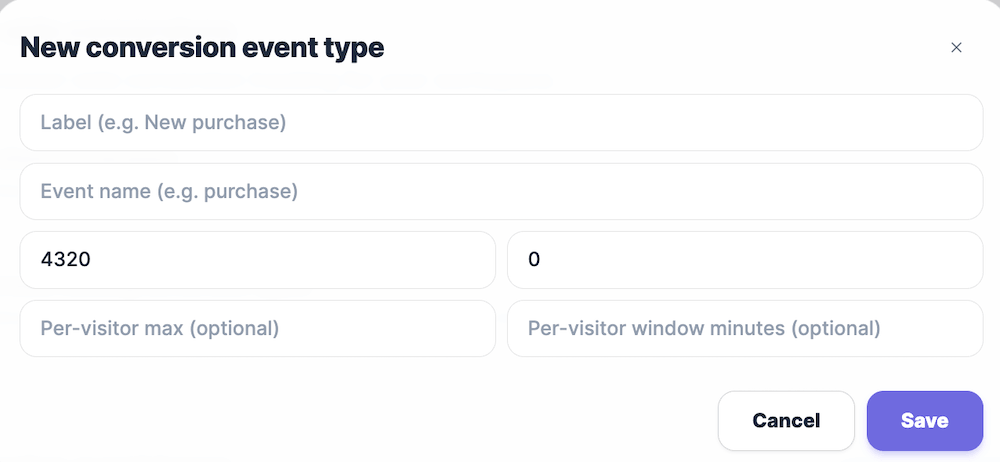
- Enter the technical Event Name used in your integration (for example:
subscription_started). - Define optional behavioural controls such as visitor limits or timing windows.
- Click Save to activate the conversion definition.
Manual configuration is recommended when:
- You scale creator or campaign activities
- Multiple acquisition channels must be compared consistently
- Revenue attribution accuracy becomes critical
- You want to align marketing metrics with product analytics
Understanding Optional Parameters
When defining a conversion event type, you may see advanced configuration fields:
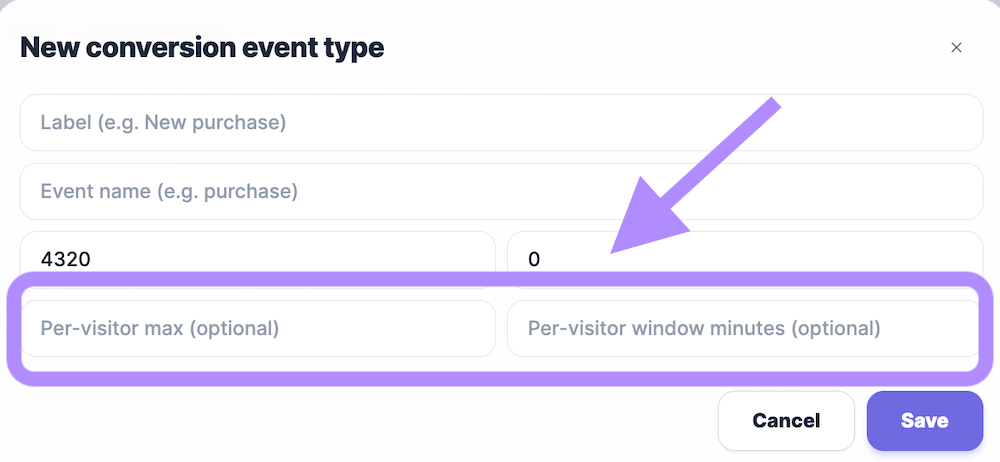
Per-visitor max
Limits how many times a single visitor can trigger this conversion within the defined window. Useful for preventing inflated signals in repeated-action flows.
Per-visitor window minutes
Defines the time range in which repeated conversion actions from the same visitor are grouped. Helps stabilise signal quality in high-frequency interaction environments.
If you are unsure how to configure these values, it is safe to leave them empty.
OneLence will apply default signal interpretation logic.
Deleting Conversion Event Types
Conversion types can be removed if they were created during testing or early experiments.
 Before deleting, consider the impact:
- Future signals with that event name may no longer map correctly.
- Historical comparisons across campaigns may become less consistent.
- Automated insight clarity may temporarily decrease.
Avoid deleting conversion types that represent core revenue actions such as purchases, subscriptions, or qualified leads.
Practical Setup Guidance
For most teams, the safest configuration is:
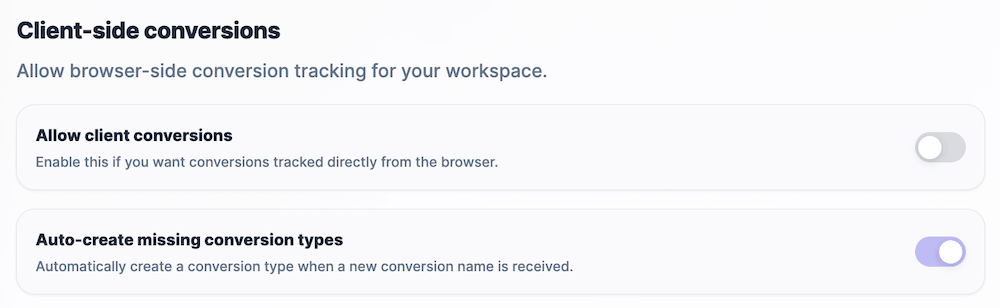
- Client-side conversions disabled
- Auto-create conversion types enabled
- Manual event definition introduced only when growth operations mature
This approach allows OneLence to capture reliable behavioural signals while keeping operational complexity low.