
Overview
After installing the base tracking code and continuing the setup flow, OneLence automatically begins listening for incoming browser events from your website.
At this stage, the platform attempts to detect your first page view signal to confirm that tracking is working correctly.
You may see a screen indicating that OneLence is waiting for your first event.
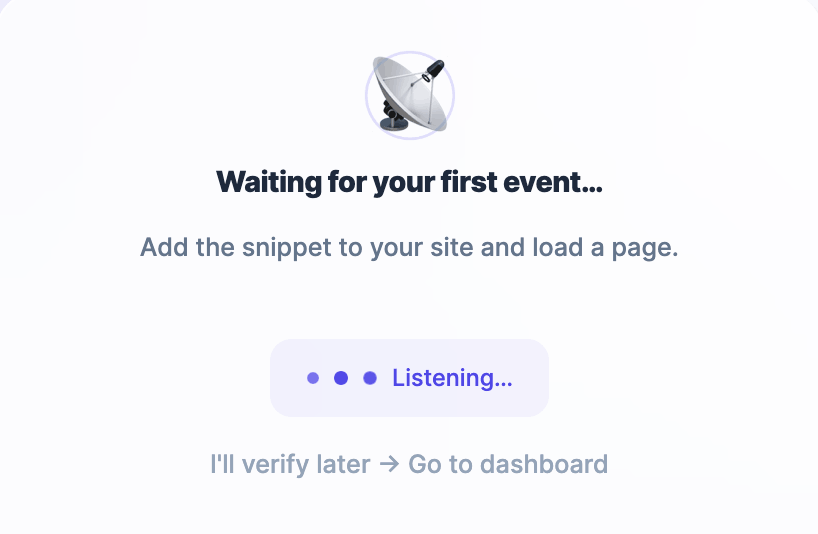
This means the system is actively checking for incoming tracking signals from your site.
Triggering your first signal
To help OneLence detect your first event faster, open your website in a new browser tab and load one or more pages.
Each page load can generate a page_view event, which is typically the first signal received after base tracking is installed.
If your site uses client-side routing, navigating between pages or views can also trigger tracking signals.
What happens when the first event is received
Once OneLence successfully detects the first signal, the setup screen will update automatically to confirm that tracking is active.
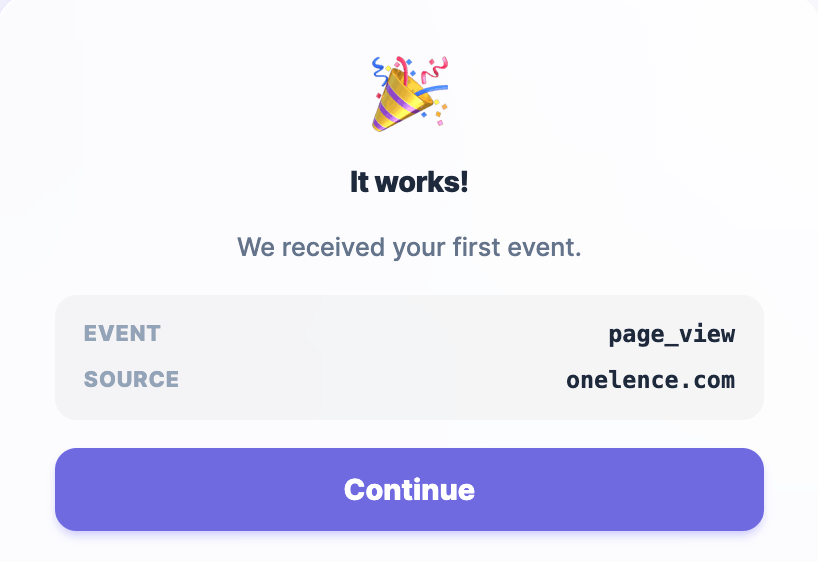 You will see confirmation such as:
- the detected event type (for example
page_view) - the associated site or source domain
This confirms that your website is successfully connected to OneLence tracking.
If no event appears
If the system continues to display a waiting state:
- ensure the tracking snippet or SDK initialization is deployed to your live site
- refresh your website or navigate to another page
- confirm that browser consent settings allow tracking to initialize (for example deactivating AdBlock on your site)
- allow a short delay for network propagation or deployment caching
You can also continue setup and verify tracking later from the dashboard.
What to do next
Once your first signal is confirmed, you can:
- explore your workspace dashboard
- begin defining meaningful conversion signals
- test additional interactions such as navigation flows or marketing campaign visits
These early signals form the foundation of OneLence journey intelligence and attribution modeling.